 Contents → Navigation
 Memory Alpha's navigation is the menu that can be found in the page header at the top of all pages. It provides useful links to the most important and interesting pages on Memory Alpha.
When deciding how to organize the navigation bar and what content to include, you'll need to put yourself into your visitor's shoes, think about what they are most likely to be looking for, and provide a straight path to as much relevant wiki content as possible.
Keep in mind that almost all visitors to Memory Alpha come to read articles, not to create them. Archivists only make up 0.4 percent of Memory Alpha's visitors, and while Memory Alpha couldn't exist without their hard work, the local navigation bar should first and foremost serve readers. Archivists create and maintain awesome content, and the navigation bar helps readers find it, while other site elements, such as the bottom tool bar help Archivists access the tools they need.


The navigation menu can be found in the page header at the top of every Memory Alpha page. It has the option to add up to four customizable menu options, in addition to the "Explore" menu and "Discuss" button.
- The "Explore" tab is always present in the navigation and provides important links, including Random page, Community, and Images. This menu is not customizable and no additional links may be added.
- "Discuss" links to Memory Alpha's Discussions.
- On the right is a cosmetic header image that can be uploaded from the Theme Designer.
- On the top right corner of the page header there is a page count along with a few buttons that access to various tools (for more info, see header shortcuts). All users will see the "Add New Page" button, registered users will see the "Wiki Activity" button next to it along with the "more shortcuts" button next to the Wiki Activity button, and administrators will also see a button for the Admin Dashboard.
- On the left is a graphical wordmark, along with the community name, both of which can be customized via Theme Designer.
Administrators can edit the navigation menu at MediaWiki:Wiki-navigation; they can also access this in the Admin Dashboard by clicking Top Navigation.
Each item in the navigation bar is represented by a line in the MediaWiki: Wiki-navigation page. Level 1 items are prefixed with one asterisk (*), level 2 items are prefixed with two asterisks, and level 3 items are prefixed with three asterisks, like so:
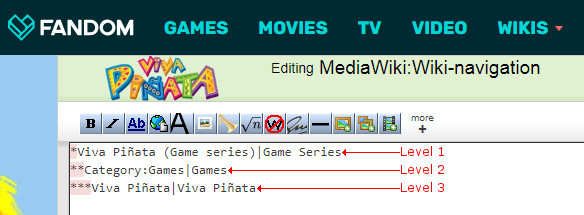
After the asterisk, type the name of the page you are linking to. If you want the name to display differently than the page's actual name, set a pipe between the name of the page and the text you want to display. For example, if you are linking to a page called Lion but you want to display it as Kitten, use Lion|Kitten after the asterisk.
If you don't want a navigation item to link to anything, add
#| in front of it.
For example, a navigation bar set to
* #|Movies
** Prequel trilogy
** Sequel trilogy
* #|Videogames
** First videogame
** Second videogame
** #|In Development
*** Untitled Third Videogame|Third game
*** Spin-off (Game)|Recently announced spin-off title
will contain:
- Two Level 1 navigation items, "Movies" and "Videogames", that aren't linking to any pages.
- Four Level 2 navigation items, two being under "Movies" and linking to "Prequel trilogy" and "Sequel trilogy" pages on your wiki, and two being under "Videogames" and linking to "First videogame" and "Second videogame", with "In Development" not linking to anything.
- Two Level 3 navigation items under "In Development", first linking to the "Untitled Third Videogame" page on your wiki and displaying the text "Third game", and a second one linking to "Spin-off (Game)" and displaying the text "Recently announced spin-off title".
After you make your changes, you will need to preview the changes before you can publish them. The "Preview" button is located beneath the "Edit Summary" box. The "Preview" button will show your new navigation and check for errors in the wiki text. For example, it will report an error if you try to use a magic word in a Level 1 or Level 3 menu item. It will also run a width validator tool which will inform you if your menu items are too wide to display at the minimum width of the site.
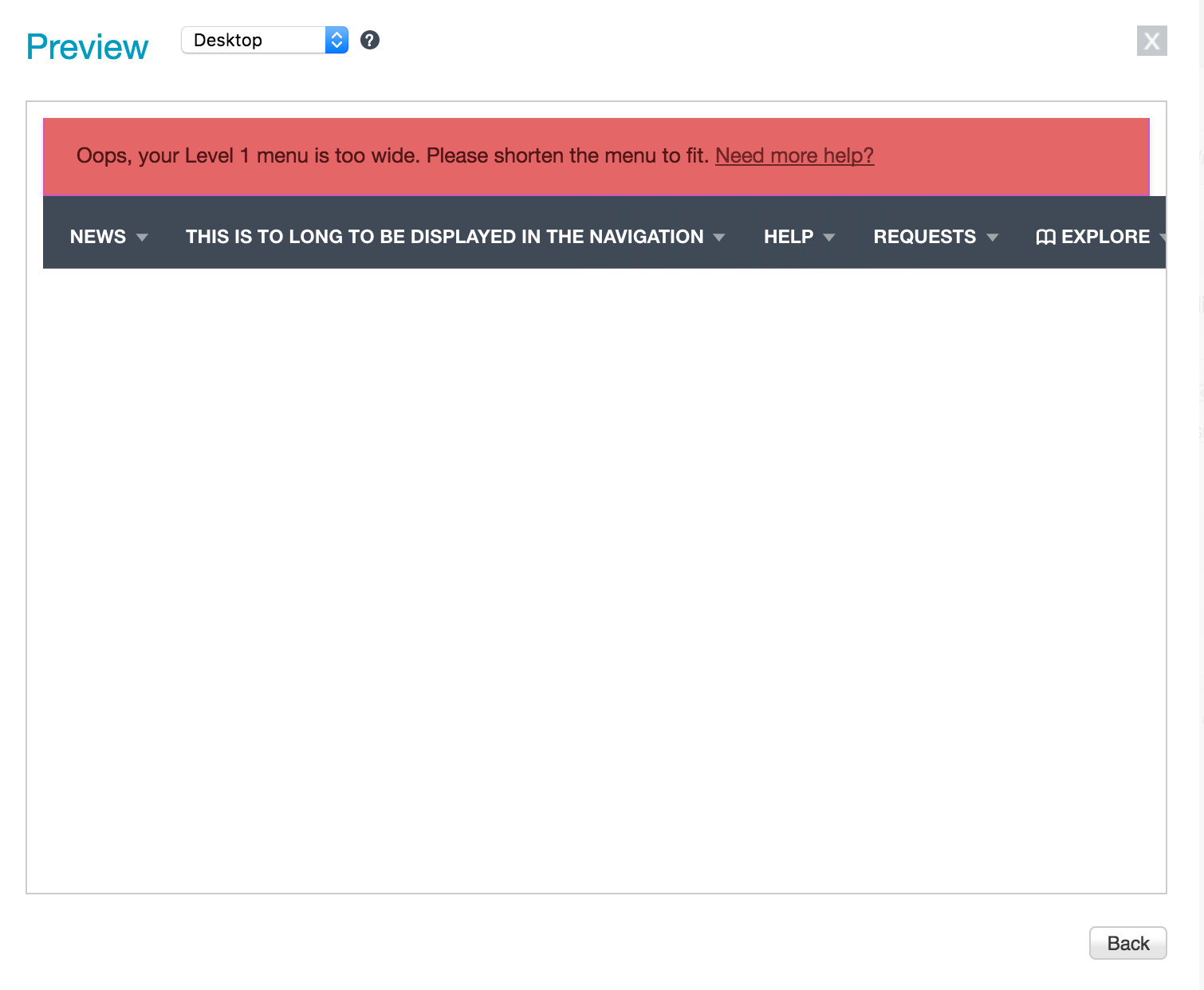
If there are any problems, you will need to return back to the editor to adjust your navigation. When your preview contains no errors, the "Publish" button will appear in the preview window. Click it and your new navigation will be live.


How many links can it contain?
The Navigation menu offers a maximum of 312 links, although it is not necessary to use all of them. The links are grouped as:
- 4 Level 1 links which combine for a total width of 550px. These are the links that are always visible above the colored menu bar.
- 7 Level 2 links with a maximum total width of 729px. These are the links that appear on the colored bar when hovering over any of the level 1 links.
- 10 Level 3 links with a dynamic width and a minimum width of 150px. These appear as dropdown style menus under each of the level 2 links.
It is best to showcase as much relevant content as possible in a clearly organized fashion, without overstuffing your navigation. Include links to those categories and pages that are most important for readers, while leaving out any links that are only useful for editors or that are already built into Memory Alpha's interface. For example, links to contact Fandom staff, create a new page, or access Recent Changes can already be found elsewhere on every page, and links to special pages or editing guidelines are only relevant to editors and shouldn't take up a navigation bar slot.
No additional links or menu levels may be added with custom CSS or JavaScript.
You can use magic words to automatically fill in menu items. Note that these are heavily affected by caching, and it may still be better to list out specific pages instead.
Supported magic words:
#categoryX#– lists the top pages from the Xth-biggest category on a wiki (replace "X" with a number greater than 0)#category-Y#– lists the top pages from Category:Y (replace "Y" with the name of your category)
Since magic words generate lists of pages, they may only be used as Level 2 menu items; the list they generate will appear as the Level 3 menu items. All of the magic words list a maximum of seven pages.
Notes:
- Don't forget to include the
#symbols around the magic words you choose to use. - Since magic words list at most seven pages, up to three additional level 3 menu items may be added and will appear after the auto-generated list.
Next pages
- Read the guide on how to decide which links to include in your navigation
- Learn how to edit your toolbar
- Learn how to view the latest wiki activity