


The VisualEditor in action
The VisualEditor feature allows users to edit an article without changing the view. The editing interface will always reflect how the article will look when published.
Using VisualEditor
If you have set your preferences to allow it, the "Edit" button on an article page will start the VisualEditor. Otherwise, the "VisualEditor" option may be available in the Edit button's dropdown menu. Unlike the classic editor – sometimes called the Rich Text Editor (RTE) – VisualEditor does not reload the entire page in your browser; it simply turns the article area into an editor. The editing toolbar appears at the top of the article space, and the cursor appears at the beginning of the text.
Making an edit
After clicking "Edit", simply begin typing the text that you want to add. The toolbar allows for text modifications like  bold,
bold,  italic, and the selection of various text sizes (headings and sub-headings).
Your browser's native spell check function will be used as you enter text; this is most often shown as red underlining on misspelled words.
The toolbar also has the  link tool that's used to link words or phrases to other pages on the same site. To create a link, either:
- Click the link button without selecting any text – you can then type in the intended destination in the tool, and this will be used as the link text.
- Highlight some text then click the link button – this will keep the highlighted text, but you can point the link itself at a different destination.
If the destination article already exists, you can simply start typing the name of the page and a list of suggestions will appear. When you're done, simply hit enter or click elsewhere on the screen to dismiss the dialog. Click the linked text to access the dialog again for further changes.
Additional format options can be found under the  style dropdown. For example, choose one of the
  list icons to start a numbered or bulleted list.
Media (images and videos)
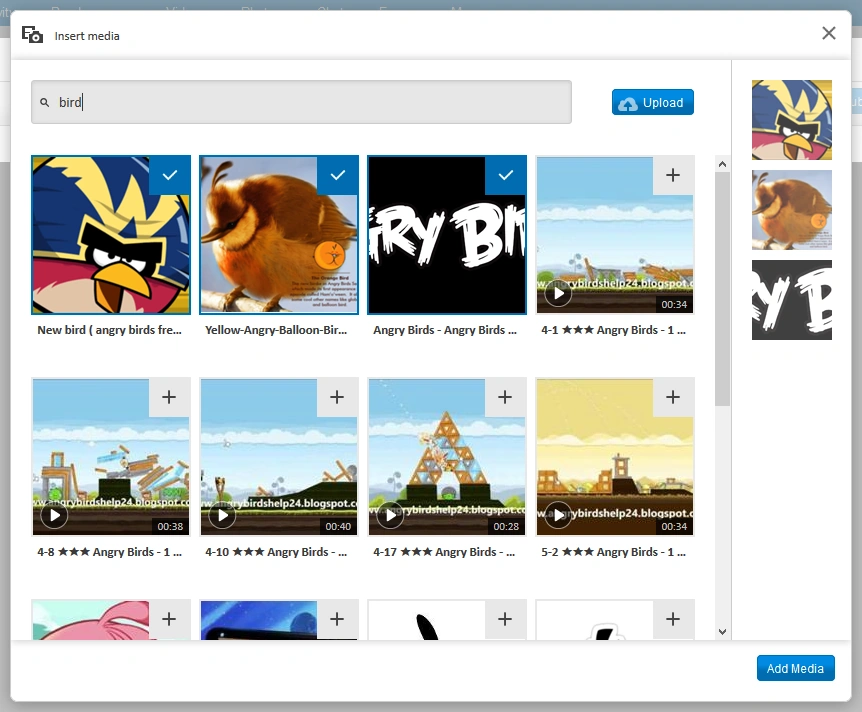
The media insertion tool, with the cart on the right side
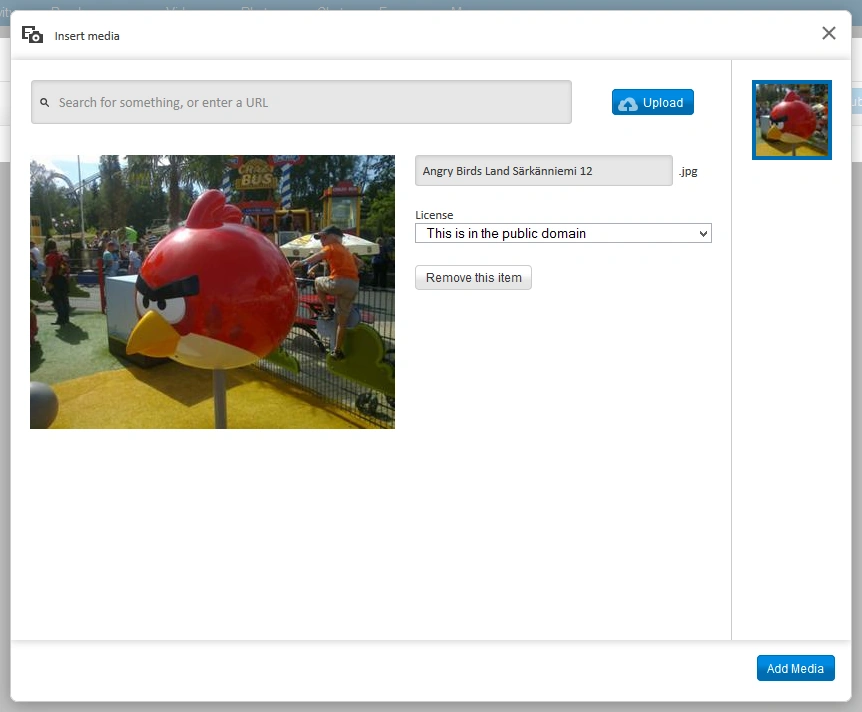
Upload a new image
- Upload an image, add a video, or search the community for existing images and videos using the
 Add Media button, under the Insert menu.
- To upload an image, click the Upload button and then select a file from your computer.
- The image or video will be added to your cart, displayed on the right side. Information about the image or video will be displayed in the center. Click Upload again or paste in another URL to add more media to the cart.
- Search the community for existing images and videos by entering search terms into the field at the top of the Add Media tool. Results will be displayed below the field; images and videos are mixed together in the results. Click on one or more images or videos to add them to the cart, displayed on the right side. Items you've added the cart will show a check mark
 in the upper right corner (even when they appear in subsequent search results).
 - Click an item in the cart to see more information about that item. You can rename the file, select a licensing option, or remove the item from the cart.
- When your cart is ready with one or more items, click "Add Media" in the lower right. The items will be inserted into the article as thumbnails. The default width for images is 220px. You can resize media and add captions after adding them to the article layout.
- Resize images already present in the article by selecting the image and using your mouse to drag the corners. If you hold down the Shift key when dragging, the images will be resized in steps of 10px.
- Edit image captions by selecting an image and clicking the image icon
 at the upper right.


Admins can customize the message shown at the bottom of the "Add media" dialog by editing the wikia-visualeditor-dialog-wikiamediainsert-policy-message system message.
Other modifications
Other abilities include, but are not limited to:
- Add and edit categories by clicking the
 Settings menu in the toolbar, then choosing "Categories".
 - Add a new template using the
 Template option on the toolbar's Insert menu.
- Edit an existing template by selecting it and clicking the template icon in the upper right.
- Add references by choosing the
 Reference option on the Insert menu in the toolbar.
- Edit existing references by selecting the references section and clicking the references icon in the upper right.


Accessing source mode
On the toolbar's Settings menu ( ), choose the Source editor option
  to view the page's wikitext. If you make any changes, click the "Apply changes" button in the lower right, and you'll be returned to the VisualEditor with the changes reflected there.
Notes
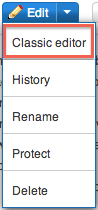
The Classic editor option still allows access to all existing editing tools
The VisualEditor is a new feature and development is ongoing. If you would like to experiment with the VisualEditor, you can try it out by updating your preferences.
Note: the VisualEditor is not supported in Internet Explorer at this time. Other standard browsers are supported.
The current release allows for editing of article text, image captions, templates, categories and references as well as uploading images, adding videos, using existing images and videos, and making some types of modifications to images and videos. Any element that you can't modify using VisualEditor will be obscured with a striped overlay and a tooltip stating that it's not currently editable. To do things like create new tables or galleries, you'll still need to use the "classic" editing experience. Fandom will be adding more and more functionality over time; the VisualEditor is only active for the main namespace at this time, and is only available in the Fandom skin.
User preferences
To give you more control about what editor you use, you can choose your default editor from a dropdown list in your user preferences (found here).
| Setting | Meaning |
|---|---|
| Default | Shows whichever editor has been set as default for the wiki you are on (VE, classic, or source) |
| Fandom's VisualEditor | Shows the VE on all wikis |
| Fandom's classic rich-text editor | Shows the classic rich-text editor where already enabled; if not, the source editor is shown |
| Source editor | Shows the basic source editor on all wikis |
Depending on your choice, the alternative editors can still be found under the "Edit" button dropdown – for example, you can still access the classic editor from the dropdown even if the VisualEditor is set as your default.
Further help
- For help using the standard editor, please see Editing